
Gemstone Lights App
The Smart Lighting App
for Your Whole Home
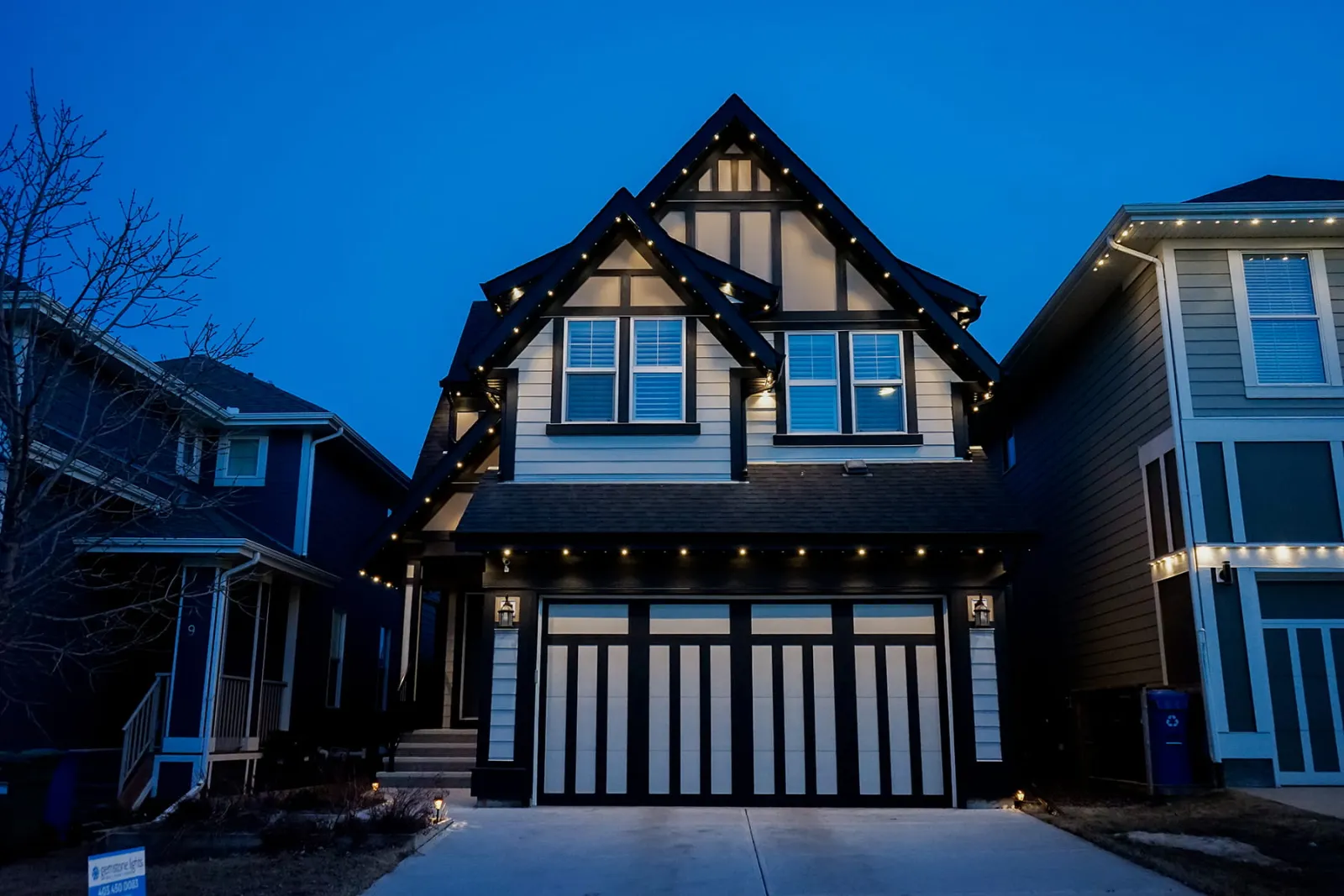
The Gemstone Lights® app is the smart lighting app that runs every light on your house, from a quiet warm-white weeknight to a full Christmas show. iPhone or Android, set up on your phone by our North Atlanta team.
Now Playing
See What’s Playing
From the Couch
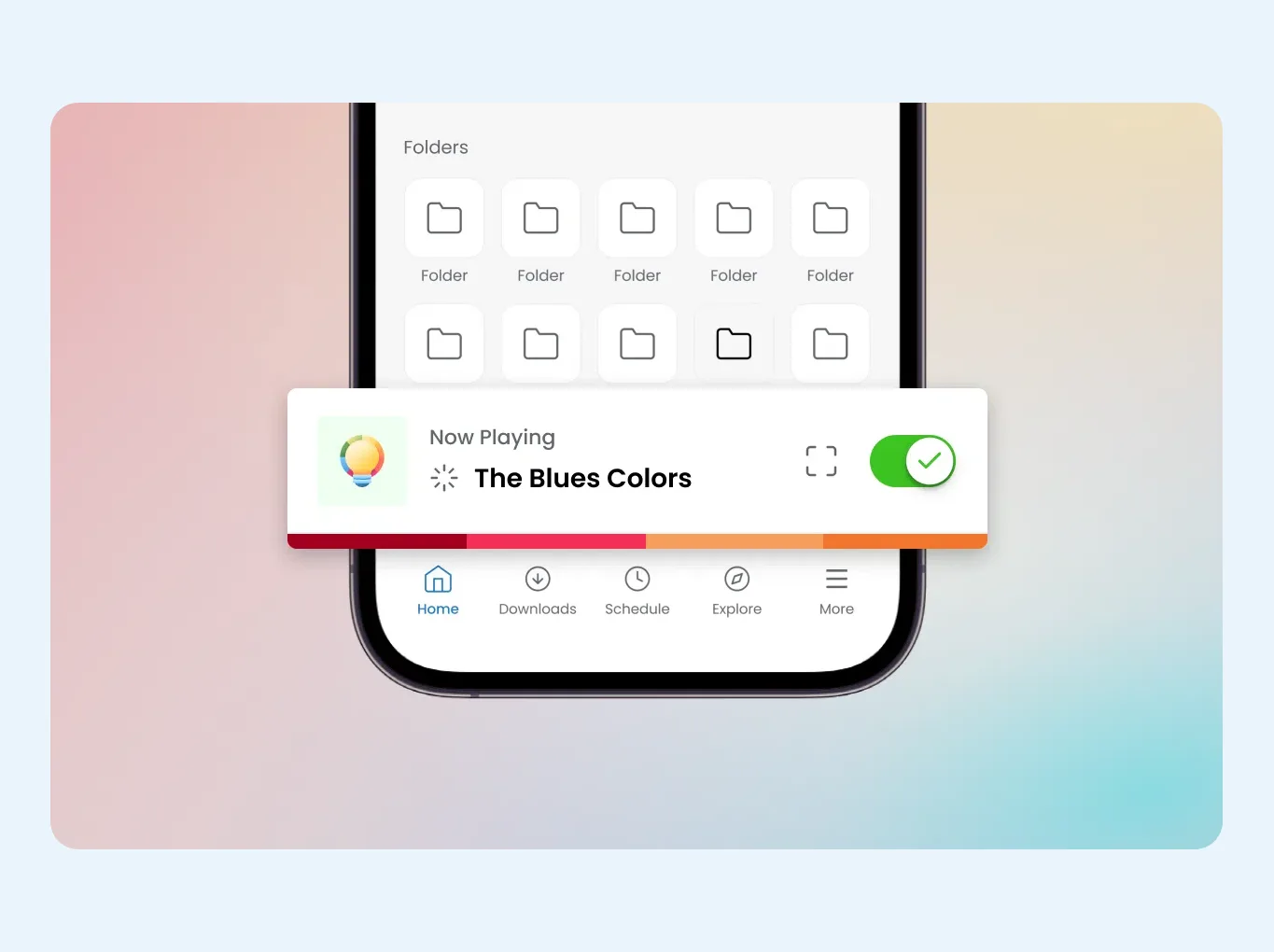
Open the app and the Now Playing tab tells you which pattern is on the house right now. No walking out to the driveway to check. From that same screen you can brighten or dim the lights, slow an animation down or speed it up, and nudge the color until it looks right.
The home screen keeps your three most recent patterns, your music patterns and your own folders a tap away. A Recent Patterns folder holds the looks you have used lately, which helps when you want last Friday’s game-night colors back without hunting for them.
Color
Pick Colors by Wheel, Slider or Hex Code
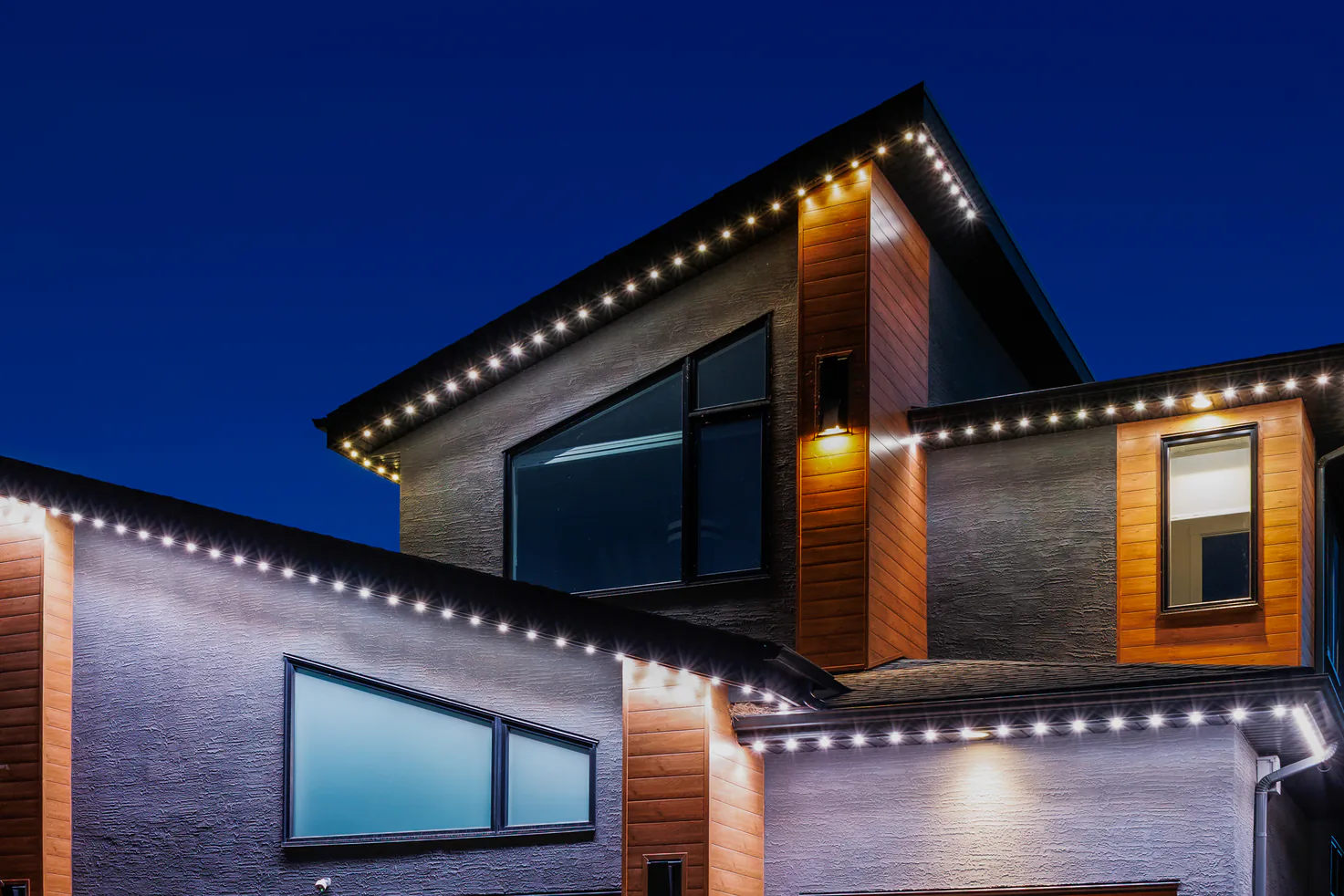
Roofline track and flood lights can show more than 16 million colors, and the app gives you four ways to land on the one you want. Drag around a color wheel, move the RGB sliders, choose from a palette, or type a hex code when you need an exact match. Name a color and save it, and it is there next time.
Hex codes are handy for team colors and for matching the trim on your house. On roofline track every light can be set on its own, so you can pick out a gable, wash the front porch in warm white, or run a pattern or animation on one zone while the rest of the roof stays still.
Sharing
Share a Pattern With One Link
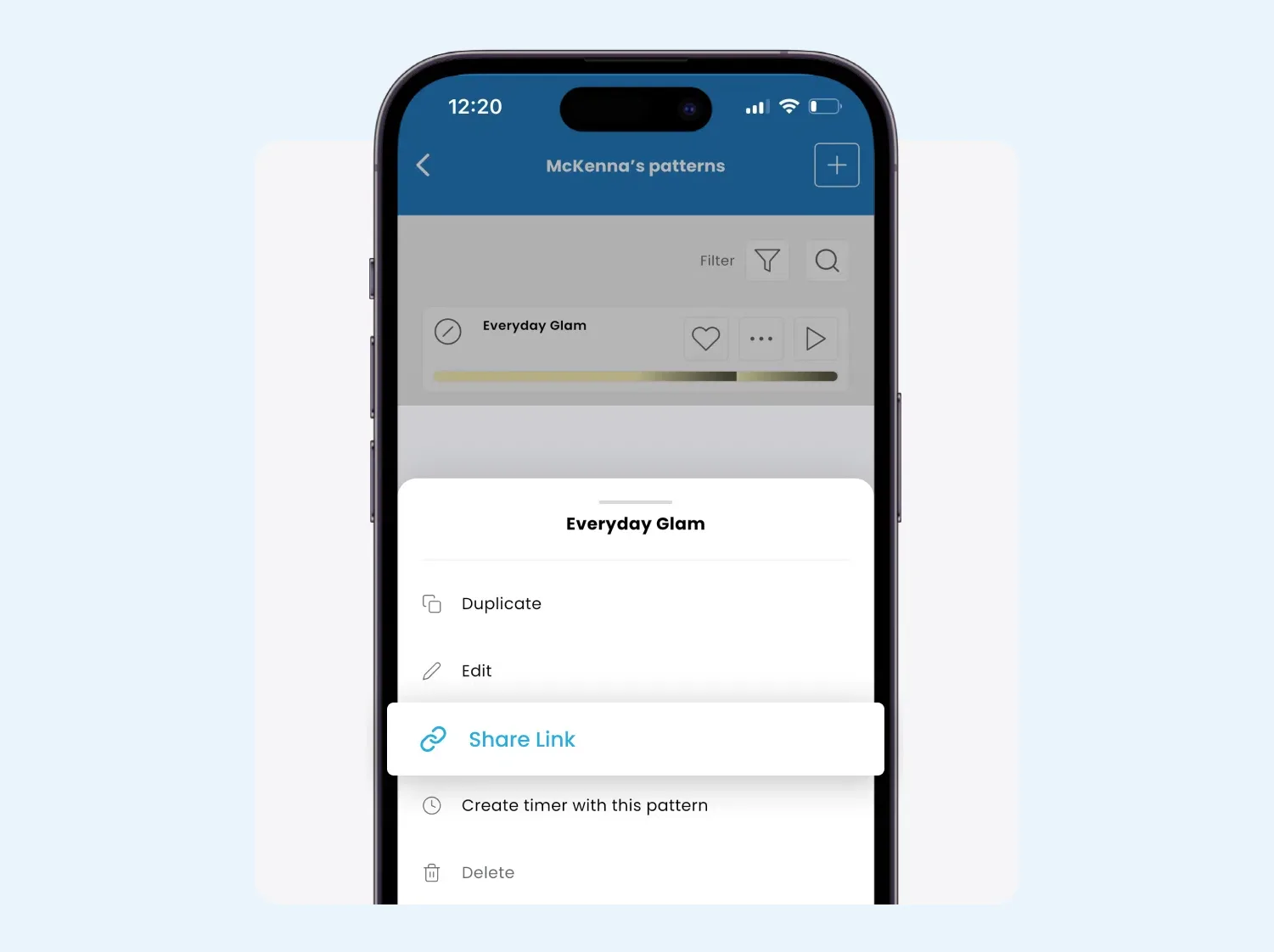
Made a Christmas look the neighbors keep asking about? Long-press a folder, or tap the three dots beside a pattern, choose Share and send the link. Whoever opens it can apply your pattern to their own Gemstone Lights system in a tap. You decide what gets shared.
Shared designs also appear in the Downloads section for other Hub2 owners to browse. The Sports area there holds 125 team folders across the NFL, NBA, MLB and NHL, so a game-day look rarely takes more than a few taps.
Cloud Sync
Your Patterns Follow Your Account
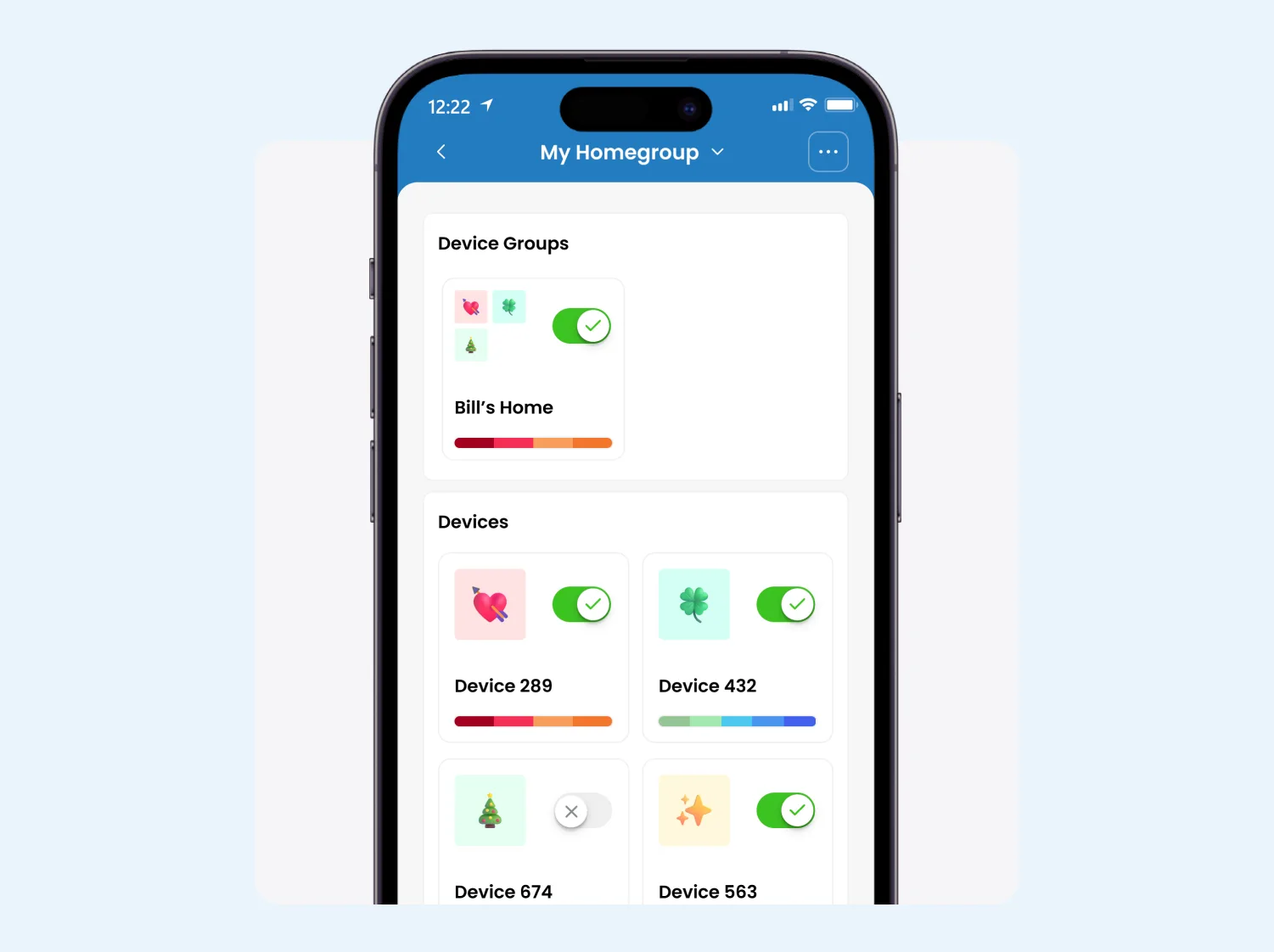
Folders, saved patterns and architectural designs sync to the cloud. Sign in on a new phone, or a second phone in the house, and everything is already there. Architectural patterns also sync across your homegroup, so everyone sees the same set. A lost phone no longer means lost patterns.
With an internet connection you can change the lights from anywhere: from an office in Midtown, from the airport at Hartsfield-Jackson, or from a beach chair on vacation. That is useful for security lighting while the house is empty, and for fixing a schedule you forgot to set before leaving.
More You Can Do in the App
A few of the features people reach for most. Each one has its own page.
Autopilot
Subscribe to holiday, seasonal and game-day calendars and your lights change to a fitting pattern on their own.
Smart Scheduling
Calendar schedules and sunset-to-sunrise timers run your lights so you never have to think about them.
Pattern Builder
Make your own pattern in under a minute by picking colors, zones and an animation.
Music Sync
Set your phone near the speakers and the lights move to the beat.
Zone Control
Divide your lights into zones and run a different color or animation in each.
Alexa & Google Home
Turn your lights on, off or to a new color by voice with Amazon Alexa or Google Home.
From Install Day to Your First Pattern
-
Step 1: We connect it
At the end of the install, your installer scans the controller’s unique QR code, joins it to your WiFi and sets up your Gemstone Lights account. The QR step means no one pairs with the wrong house by mistake.
-
Step 2: We show you around
Once your phone is connected, we walk you through it on your own phone: changing colors, picking a premade pattern and setting a sunset timer.
-
Step 3: You make it yours
Save a few favorite looks, add timers, and subscribe to Autopilot calendars if you would like the holidays handled for you.
-
Step 4: Help stays close
The Learn tab has tutorials, pattern showcases, announcements and a direct line to Gemstone’s support team. Our Atlanta team is a message away too.
Download
Get the Gemstone Lights App
The Gemstone Lights app runs on the Hub2 controller. Homes still on the original Hub keep the older Hub app until they upgrade to Hub2.
Gemstone Lights App FAQs
Yes. The app was rebuilt from the ground up for iOS and Android alongside the Hub2 controller. We install it on your phone and sign you in at the end of your installation, so your smart lighting app is ready to use the first night.
The Gemstone Lights app is built for Hub2, and the original Hub app does not work with Hub2. The good news is that existing lights are compatible with Hub2; some homes need a small wiring change, which the dealer handles. See upgrading from Hub1.
Controlling the lights from away from home needs an internet connection on the controller and your phone. At home, Hub2’s Bluetooth lets your phone talk to the controller directly. Sunrise and sunset timers keep running even if the internet drops.
Choose a music sync pattern, keep the app open on screen, and play music from a speaker near your phone. The phone listens and the lights move with the beat. It cannot use songs playing on the same phone, because iOS and Android do not allow a phone to play and record audio at once.
Yes. Sign in to the same account on another phone and your folders and patterns appear there too, because they are synced to the cloud. Architectural patterns sync across the homegroup, so everyone sees the same looks.
No. The same lights and the same app cover warm white for ordinary evenings, team colors on game day and every holiday. Christmas is just one folder of more than 14,000 premade patterns. See permanent Christmas lights for the holiday side.
Keep exploring
See What This Could Look Like
on Your Home
Tell us a little about your home, and we'll help you understand what a professionally installed Gemstone Lights system could look like for your space.
Thanks — your request is in. A specialist will be in touch shortly.